Install guide
Install on Mac
A one-time right-click is all it takes. macOS remembers the choice, and future launches are instant.
- 01
Open the .dmg and drag ClipHop to Applications
Standard macOS install. Close the disk image when you’re done and eject it from Finder.
- 02
Right-click ClipHop and choose Open
Double-clicking will show a dialog asking you to move it to the Trash — that’s Gatekeeper being cautious. Right-click (or Control-click) the app and choose Open instead. macOS shows a different dialog that lets you launch it.
- 03
Click Open in the confirmation dialog
macOS stores your choice. From now on, ClipHop launches with a single click from the Applications folder — or automatically at login if you enable it in Preferences.
- 04
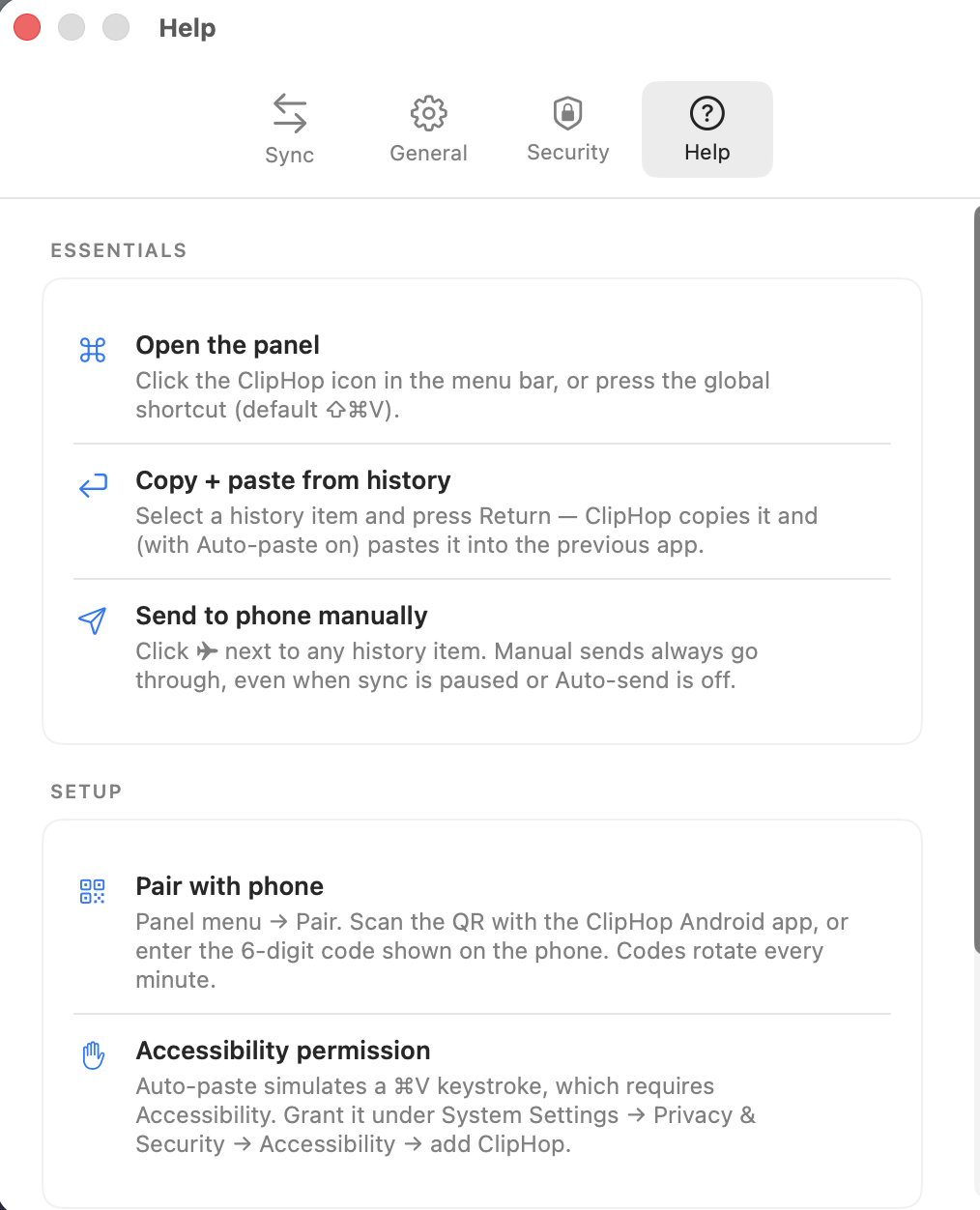
Grant Accessibility (optional, for auto-paste)
If you want Return in the panel to auto-paste history items back into the previous app, open System Settings → Privacy & Security → Accessibility and toggle ClipHop on. Skip this if you prefer to copy from history and hit ⌘V yourself.
- 05
Pair with your phone
Click the ClipHop icon in the menu bar and choose Pair a new device. The full walkthrough is on the pairing page.
Having trouble? Email support@cliphop.org and we’ll help.